

Setting up Screen Time properly, step by step
Apple's built-in controls are free and better than most parents realise, if you avoid the passcode mistake almost everyone makes. Twenty minutes, start to finish.

On this page
Your child's iPhone or iPad, your own Apple device, and about twenty minutes. If your child doesn't have their own Apple ID yet, we cover creating one in step one.
Step 1: add your child to Family Sharing
Screen Time only works properly when the child has their own Apple ID inside your Family Sharing group. Open Settings on your phone, tap your name, then Family Sharing, and invite or create the child account.

Step 2: turn on Screen Time from your phone, not theirs
Manage everything remotely from Settings → Family → your child's name → Screen Time. Doing it from your own device means the passcode never has to exist on theirs.
Never type the Screen Time passcode on the child's device while they watch. It's the single most common way controls get quietly removed, and children are better at shoulder-surfing than you think.
Step 3: set downtime and app limits
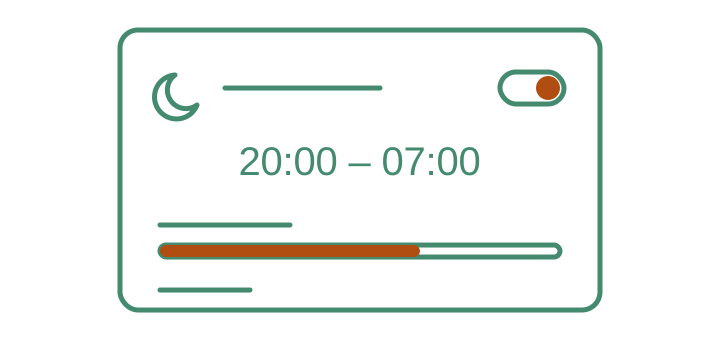
Start with a schedule that matches your house rules, not an ideal one. A downtime of 8pm–7am with a one-hour daily limit on social and games is a realistic first week; tighten later if you need to.
Step 4: turn on communication safety
Under Screen Time → Communication Safety, switch on the checks for sensitive photos and videos. This is on-device and private to the child. Nothing is sent to Apple or to you; it simply pauses and warns before anything is viewed or sent.
Step 5: set content filters and a weekly check-in
Under Content & Privacy Restrictions, set web content to "Limit adult websites" and app ratings to your child's age band. Then put a weekly ten-minute check-in in your own calendar. The report is only useful if someone reads it, and the settings only stay right if they move with your child's age.
Everything in this guide is free. If someone is trying to sell you an app to do any of this, you don't need it yet.
Common questions
Can my child turn Screen Time off?
Not without the Screen Time passcode, which is why it should only ever exist on your device. The known workarounds, and how to close them, are covered in step six.
What if my child already knows my passcode?
Change it from your own device (Settings → Family → child’s name → Screen Time → Change passcode) and pick one that isn’t your phone unlock code or a birthday.
Does Screen Time work on Android?
No. It’s Apple only. On Android the equivalent is Google Family Link, which is also free. We have a separate step-by-step guide for it.