

Filter the whole house with one router change
Every device on your wifi (phones, consoles, the telly, visiting friends' tablets) filtered through one setting that takes ten minutes and costs nothing.

On this page
How DNS filtering works
Every time a device on your wifi opens a website, it first asks a DNS server to translate the name into an address. Point your router at a family-filtering DNS service instead of your ISP's default, and that translation step simply refuses to answer for adult sites, known scams and malware. The device never finds the front door.
Because the router hands this setting to everything that joins the network, one change covers devices no parental-control app can touch: the smart TV, the Switch, the friend's phone on your guest wifi.
Step 1: pick a filtering service
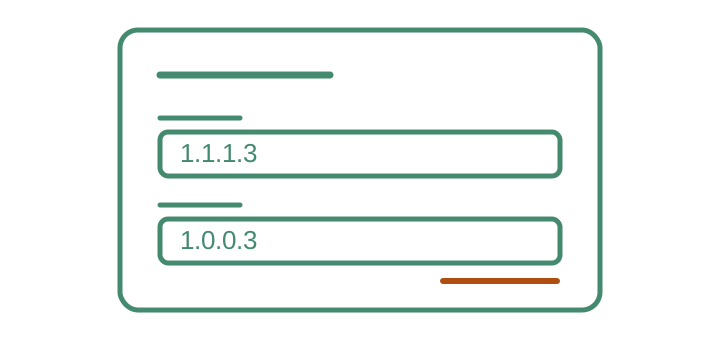
Two free options do this well. Cloudflare's 1.1.1.1 for Families (use the addresses 1.1.1.3 and 1.0.0.3) blocks adult content and malware with zero configuration and no account. OpenDNS FamilyShield (208.67.222.123 and 208.67.220.123) is the same idea from Cisco; the full OpenDNS Home service adds category controls if you register a free account.
Start with the zero-account option. You can always graduate to configurable categories later.
Step 2: change the router setting
Log in to your router. The address and password are usually on a sticker underneath it. Find the DNS setting: it lives under Internet, WAN or LAN settings depending on the maker, sometimes labelled "name servers". Replace the existing addresses with your chosen pair, save, and let the router restart if it wants to.
Change the router's admin password while you're in there, if it's still the one on the sticker. A determined child who can log in to the router can undo everything in this guide.
Step 3: test it
Reconnect a device to the wifi (forget and rejoin, or toggle airplane mode) so it picks up the new setting. Cloudflare and OpenDNS both publish a test page that confirms you're using their filtered service. Search "1.1.1.1 help" or "OpenDNS test". Then try an adult site you'd expect to be blocked. Do this bit before announcing the change, not after.
Know the limits
DNS filtering is a coarse net, and honest expectations keep it useful. It doesn't cover mobile data, so phones need their own controls when they leave the house. It blocks whole sites, not pages. YouTube loads or it doesn't; it can't remove one video. And an older teenager who knows what DNS is can switch a device to another server unless the platform controls lock settings.
Treat it as the household layer underneath per-device controls like Screen Time and Family Link, not a replacement for them.
Everything in this guide is free, forever. If a company is charging you monthly for "network protection" that amounts to a DNS change, now you know what you're paying for.
Common questions
Will this slow our internet down?
Not noticeably. DNS lookups are a few milliseconds of every page load, and the big filtering services run fast resolvers. Nobody in your house will feel the difference; they may notice the adverts that stop loading.
Does it filter my phone when I’m out of the house?
No. The router change only covers your home wifi. On mobile data, devices use the network’s DNS. That’s what the per-device apps are for; this guide is the household layer underneath them.
My router won’t let me change DNS. Now what?
Some ISP routers lock it. Options: check for the setting under a different name ("name server"), put the ISP box in modem mode with your own router behind it, or set DNS per device instead. Fiddlier, but it works.